
As a community care case manager, you spend countless hours at your desk ensuring your clients receive the best care—but is your workspace supporting your well-being? Poor ergonomics can lead to discomfort, fatigue, and even long-term health issues like neck pain, back strain, and headaches.
The good news Small adjustments can make a big difference. We’ll share simple, practical tips to optimise your workstation—helping you stay comfortable, focused, and productive throughout the day.
From adjusting your chair height to positioning your screen correctly, these easy changes can prevent strain and support your health. After all, when your workspace works for you, you’re better equipped to deliver exceptional care.
Let’s create a healthier, more comfortable work environment—starting today!
We encourage you to manage your desk arrangement by positioning less frequently used equipment further away, with commonly used accessories placed close to allow for easy access.
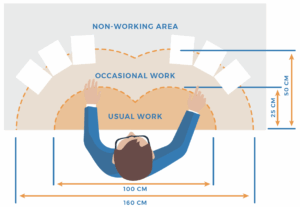
Desk Arrangement
CHAIR Your arms should be parallel with the desk height. Chair arm rests should not prevent you from sitting close to the desk. Feet should firmly touch the ground or the use of a footrest is required. Chair base and back rest should provide adequate back support.
MONITOR Eye line should be within top 1/3 of the monitor. Monitor should be directly in front of the chair. Monitor distance should be 50 – 60 cm away – arm length distance.
DESKTOP ACCESSORIES Wrist supports for keyboard and mouse used where appropriate. Telephone or headset within reach. Reading/Writing holders used where appropriate.
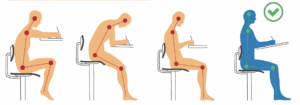
Sitting Posture
GOOD SEATED POSTURE Sit into the back of the chair. Be sure you have adequate back and lumbar support. Feet can touch the ground firmly. Thighs are parallel to the ground. Be sure to sit close enough to the desk.
FOOTREST If you are not able to place your feet firmly on the ground, a small elevated footrest will provide support and encourage good seated posture.
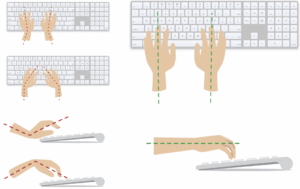
KEYBOARD ERGONOMICS The keyboard position should sit approximately 10 – 20 cm from the edge of the desk. There should be enough space to allow for the wrists to rest on the desk if required. The forearms should be parallel or slightly above the desk edge.
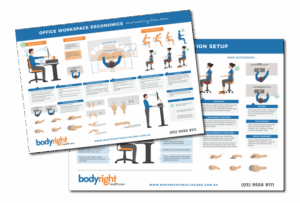
Get Your Own Ergonomic Workstation Setup PDF
Click here to download or contact us and we’ll email it through to you, simply call (03) 9558 9111 or email to [email protected].